Pages

Install GNOME Classic desktop on Ubuntu 20.04 LTS

GNOME Classic desktop.
The default desktop of Ubuntu is Gnome 3. Its new interface is different from the older version of GNOME 2. Those who are reluctant to use GNOME 3 can switch to the old fashioned desktop. Install the gnome-shell-extensions package to give the classic desktop look for GNOME 3. GNOME Classic is an old-fashioned desktop compared to the GNOME 3. GNOME Classic Desktop can work faster than GNOME 3 Desktop.

Apply the following command to install GNOME Classic desktop,

sudo apt update
sudo apt install gnome-shell-extensions

Once the installation complete, log out from the Gnome desktop to enter into the classic desktop. Select the Log Out option from the System Menu on the top right of the Gnome desktop.


Pressing the button at the bottom of the login screen will pop up the list of desktops. Select the GNOME Classic from the list. Enter the password and log in.

Autocrat for bulk certificate generation

Autocrat is a multi-purpose document merge tool works with Google Drive. It allows you to take data from a spreadsheet and merge it into a document via a template.  Tell Autocrat which fields to merge via <<merge tags>> and then let Autocrat mass-generate personalized documents.  Users can also send the documents as email attachments. Autocrat is useful to generate certificates when conducting, seminar, webinar, competitions, quiz etc. It's possible to reuse the template for further use.

Here I am going to discuss how to create and send event certificates in large numbers using Google Drive and Autocrat.

Prepare a certificate template

First, create a folder for the certificate making purpose inside Google Drive. All files regarding the certificate save here.
Prepare a certificate from Google Slide available at Google Drive. Select a good template from there. Here First Name and Last Name put inside <<merge tags>>. Here values will load from the user's details from a spreadsheet.

Add metadata to LibreOffice Writer document

Metadata in document files helpful to search and find the document in computer and World Wide Web. When the author export the document to PDF format, the metadata will also with the document. Here are the steps to add metadata to a LibreOffice Writer document.

Add author details

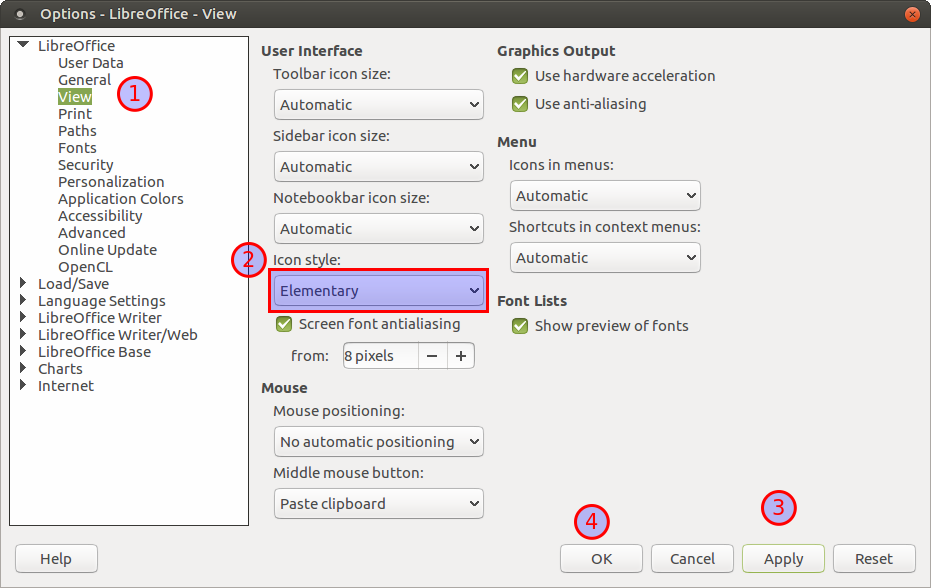
Visit Tools > Option > LibreOffice > User Data


Enter the details of the author.

Want to experience pure Android?

Mobile vendors not regularly update Android mobile operating systems. Make available a new version of Android for mobiles will take too much time. Therefore mobile users are not able to experience the features of the latest Android version and security updates. Mobile vendors do not release updates for the old devices, and they concentrate on releasing new models. 

AOSP (Android Open Source Project) regularly release updates and new versions. But users are not lucky to receive the latest releases of Android new versions on old devices. Android Project introduced Project Treble to speed up the distribution of new releases. Android Project releases new versions, and the mobile phone vendors make changes to suitable for the hardware. This process requires too much workforce, and frequent updates from vendors are not possible. With the introduction of Project Treble, users can install Android latest version on their devices. Project Treble Android image can install on compatible mobile hardware same like installing an Ubuntu Linux on any computer. All mobile phones preloaded with Android Oreo (Android 8.0) at the time of purchasing is suitable for the Treble project. It means that the mobile user can download and install a Project Treble image of the Android operating system. The mobile users can check the Treble compatibility using the following app; they can be download from Google Play Store.

Users can find various generic system image (GSI) suitable to install on Treble supported mobile devices irrespective of hardware type. Android GSI images are appropriate to fit in any Treble supported mobile phones. 

Lot of Android custom ROMs in GSI format. One of the leading GSI AOSP project by phhusson. He regularly releases GSI images of the latest versions of Android operating systems. GSI images by Phhusson are unmodified Android; users can experience pure Android experience. It does not contain any customisations and beautifications usually available with stock Android available with new mobiles. For example, Xiaomi mobile company customise the ROM and add beautifications and other changes. They also add apps not desired by the users (bloatware). It makes the vendor ROM heavy and noisy. GSI image of phhusson contain an only base version of Android, and users can add required apps later. AOSP GSI images are run smooth and provide good battery life.

Users can find GSI images of other custom ROMS. Lineage OS, Arrow OS, Havoc OS, CrDroid, AospExtended etc. are the popular custom ROMs. Most of the GSI images of custom ROMs build on phhusson project. Here is the list of custom ROMs based on phhusson.
https://github.com/phhusson/treble_experimentations/wiki/Generic-System-Image-%28GSI%29-list

Here is a detailed article on how to install a GSI image on a mobile a Treble supported phone.

Resize file system from TWRP

While the installation of Android Treble GSI images, GAPPS installation fails due to insufficient storage space. Here is the screenshot of the error message,


Android Treble project

Android Treble project gives hope for custom ROM developers and users by offering Generic System Image (GSI) images for mobile devices. Same like Ubuntu Linux suitable for computers by different manufacturers. No need to develop device-specific ROMs and decentralised efforts. Development of device-specific custom ROM takes too much time. User can free from shitty preloaded stock ROM. Here are the general steps to install GSI images on your Android phone,

1. Check the phone, whether it's treble compatible or not. Install Treble Check app from Play Store and check.
2. Unlock bootloader of your phone.
3. Install TWRP custom recovery.
4. Download desired GSI image (e.g. https://sourceforge.net/projects/developerluke-roms/files/GSIs/)
5. Install GSI image, GAPPS and Magisk (optional).
Here are the screenshots of Resurrection Remix ROM on my Realme 5 phone using GSI image.

GSI images developed by phhusson
Project Treble page at XDA Developers,
GSI images developed by Developer Luke,

Play and listen to audio in the background from YouTube

NewPipe is a YouTube client which allow you to play videos and listen to audio-only in the background. This app is convenient to listen audio (e.g. Talk, music) from YouTube channels while travelling. Video content available through NewPipe app is free from YouTube advertisements. NewPipe is a pure Free software licensed under GNU General Public License. Here are the steps to install NewPipe and play audio in the background.

1. Install NewPipe app
NewPipe app is not available at PlayStore to download. Download the apk file from any other websites (uptodown) and install.

Enable regional languages on Gboard

Gboard is a keyboard app developed for Android apps. It supports both typing and handwriting mode. Users can enable both English and Indian languages handwriting on Gboard. Gboard available default with latest versions of Android (e.g. Pie). Otherwise, users can install Gboard and make it the default keyboard. Here are the steps to install Gboard and enable regional languages in India (handwriting mode).

Install Gboard from Android PlayStore.

How to install the latest LibreOffice on Debian 10 Buster?


Remove existing LibreOffice

sudo apt remove libreoffice*
sudo apt autoremove

Add Debian backports to sources list,

sudo mousepad /etc/apt/sources.list

Add the following line at the end of the sources list,

deb http://deb.debian.org/debian buster-backports main

Save and close the file,

Update the repository and install LibreOffice

sudo apt-get update
sudo apt-get -t buster-backports install libreoffice

Information courtesy: Subeesh Gopinathan

Install Numix icon pack on Debian and Ubuntu

Image courtesy: Numix project
Numix icon theme is very beautiful and makes the desktop more attractive. Numix icon set can be install from Debian and Ubuntu software repositories.

sudo add-apt-repository ppa:numix/ppa
sudo apt update
sudo apt install numix-icon-theme-circle

Enable sudoers in Debian while installation

"Sudo (sometimes considered as short for Super-user do) is a program designed to let system administrators allow some users to execute some commands as root (or another user). The basic philosophy is to give as few privileges as possible but still allow people to get their work done. Sudo is also an effective way to log who ran which command and when" (Debian Wiki).

In normal case, users add to sudoers list after the installation of Debian. This process makes confusion among new Debian users. sudo can be enabled at the time of installation by leaving the root password blank. See the screenshot asking root password while installing Debian. 
If you leave the fields blank and continue, the default user will get administrative power, i.e. sudo power.
After the installation, sudo would be active. I tried this method with Debian 10.

Join/merge pdf files using pdfunite tool

Split PDF files can be merged into a single file using the command line. Here we use a utility called pdfunite, it contains in a bunch of package, poppler-utils. First, install the poppler-utils using the following command. It can work with both Debian and Ubuntu.

sudo apt install poppler-utils

 Usage

Put all your pdf files in a single place. And apply the following command in a terminal. Enter the pdf file names without any mistakes.

pdfunite 1.pdf 2.pdf 3.pdf output.pdf

Syntax

pdfunite source1.pdf source2.pdf source3.pdf destination.pdf

Last file name will be output file.

pdfunite command

PDF source files and output files.

Install Debian 10 (Screenshots)

Download Debian 10 (Buster) with XFCE desktop from Debian Download page. Debian XFCE CD image is a very lightweight desktop suitable to write in a CD (641 MB). Burn-in a CD or USB drive. Boot the medium and start the installation process.
Select your language. Dear English speakers don't select other languages!!

Debian 10 (Buster) Indian repository

Debian Indian repository can speed up the download speed while upgrade and installation of new packages. Indian users get the advantage of local Debian repository. Here is the Indian repository of Debian 10 (Buster).

Add to sources.list

Open the sources.list using your favourite text editor,

su
mousepad /etc/apt/sources.list
Delete or comment out the existing repository details in the file. Copy and paste the following content into the file.
deb http://debianmirror.nkn.in/debian/ buster main
deb-src http://debianmirror.nkn.in/debian/ buster main
deb http://security.debian.org/debian-security buster/updates main
deb-src http://security.debian.org/debian-security buster/updates main
# buster-updates, previously known as 'volatile'
deb http://debianmirror.nkn.in/debian/ buster-updates main
deb-src http://debianmirror.nkn.in/debian/ buster-updates main
Update the repository list and upgrade the packages
apt update
apt upgrade